Shared accounts
Put several test accounts of the same role into a project once — the whole team runs with them, and several runs can sign in at the same time.
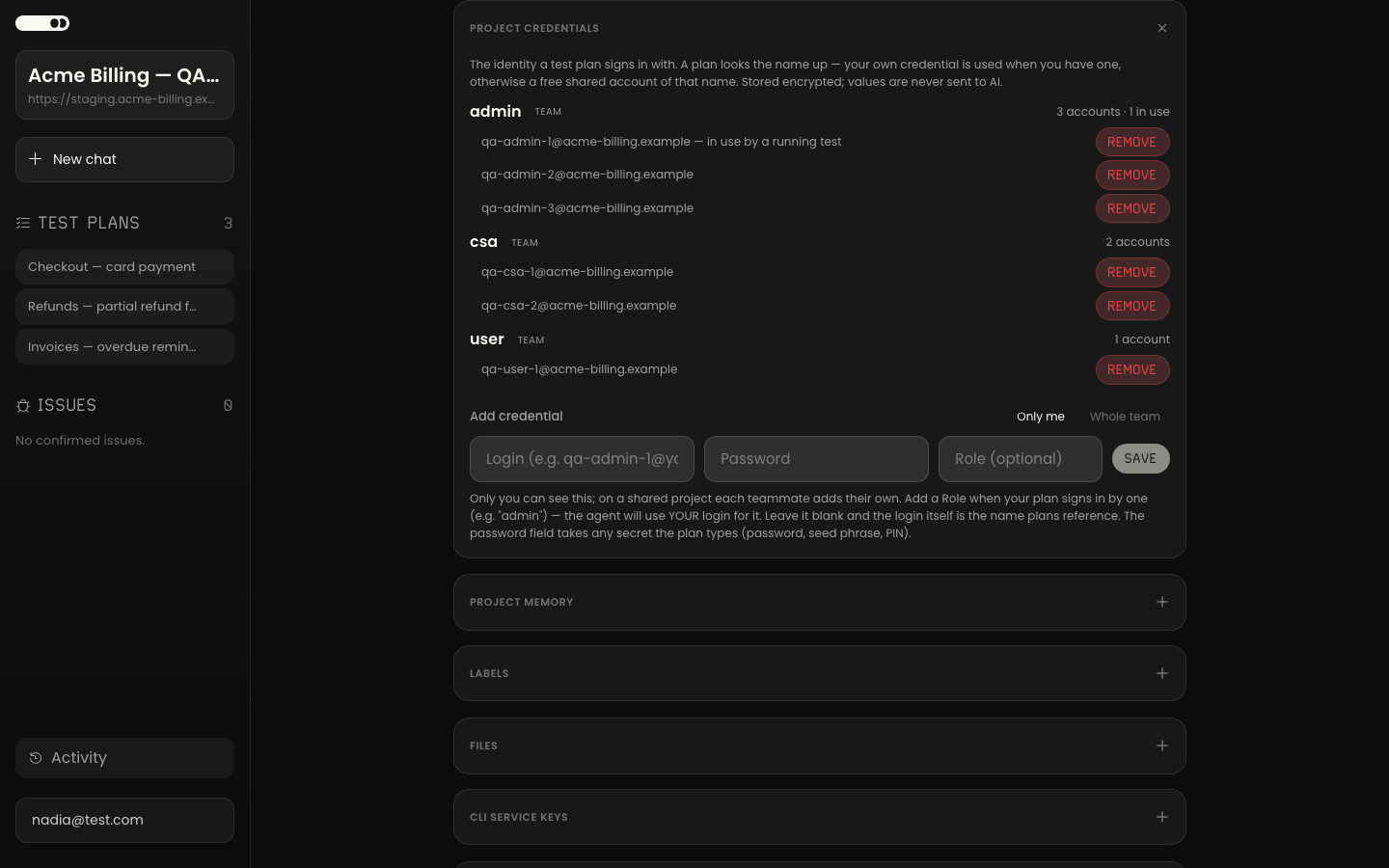
A test plan that signs in references a credential by name, and the project holds one namespace of them. When a run needs a name, Agentiqa uses your own credential if you have one, and otherwise takes a free shared account of that name. Both live in one place: Project Settings → Project credentials.
Shared accounts belong to organization sharing and, like it, are part of the Company plan — see Team projects. Personal credentials work on every plan.
Two visibilities, one lookup
When you add a credential you choose who it is for:
| Visibility | Who can use it | Who can add it |
|---|---|---|
| Only me | You, on this project | You |
| Whole team | Everyone on the project | The project owner or an org admin |
A personal credential is never readable by anyone else, on any project, under any sharing setting — see Team projects. A shared account is provisioned once, by an admin, for the whole team to run with; nobody has to type or store it. Secrets are stored encrypted and are never sent to the AI model.
The name is the role
Each entry has a Login, a Password, and a Role. The role is the name
your plans sign in with — admin, csa, user — so one plan step reads the same
for everyone:
Sign in with email as "admin"For a shared account the role is required. For a personal credential it is optional: give it a role when your plan signs in by one (the agent then uses your login for that role), or leave it blank and the login itself is the name plans reference.
Your own credential always wins. Anyone holding a personal admin keeps using
it and never touches a shared account — so the shared accounts are consumed only
by the people who actually need them.
Several accounts per role = runs in parallel
Add a second account under the same role and two tests can sign in as that
role at once. This is the whole point of the pool: three admin accounts means
three teammates — or two teammates and a nightly CI job — running signing-in plans
simultaneously, each on its own account, without knocking each other out of the
target app.
Each run takes one account per role for its duration and returns it when it
finishes. The credentials list shows this live: a role reads
3 accounts · 1 in use, and the busy account is marked in use by a running test.
When a role is fully booked
If every account of a role is busy, the run is refused before it starts — never halfway through, at a failed login:
Every shared account for role
"admin"is currently in use by another run. Wait for a run to finish, or ask a project admin to add another account to that role.
There is no queue: wait for a run to finish, or have an admin add another account to that role. The message never names who holds an account — a busy slot is expected, not something to chase a colleague about.
Add a shared account
- Open Project Settings → Project credentials.
- Under Add credential, pick Whole team.
- Enter the Login, the Password, and the Role (e.g.
admin). - Add. The role stays filled in, so adding the second and third account of the same role is one step each.
Only the project owner or an organization admin can add or remove shared accounts. Everyone else sees the roles, how many accounts each has, and which are in use.
Related
- Team projects — sharing a project with your organization
- Settings — where project credentials live
- CI Integration — automated runs draw on the same shared accounts