Project Files
Upload a document once, reference it anywhere in the project with a tag, and every chat and test plan reuses the same file.
Project Files is a per-project library of reusable documents. Upload a file once — a PDF, an image, a CSV, any type — and reference it from a chat message or a test-plan step with a tag instead of re-uploading it every time. The agent receives the file exactly as if you had attached it by hand.
A file's name is its tag. Reference it by wrapping the name (including its
extension) in double braces: {{invoice-template.pdf}}. Files and their tags are
project-scoped and stored in the cloud, so the same library is visible in the
web app, the desktop app, and to saved
plans run from the CLI.
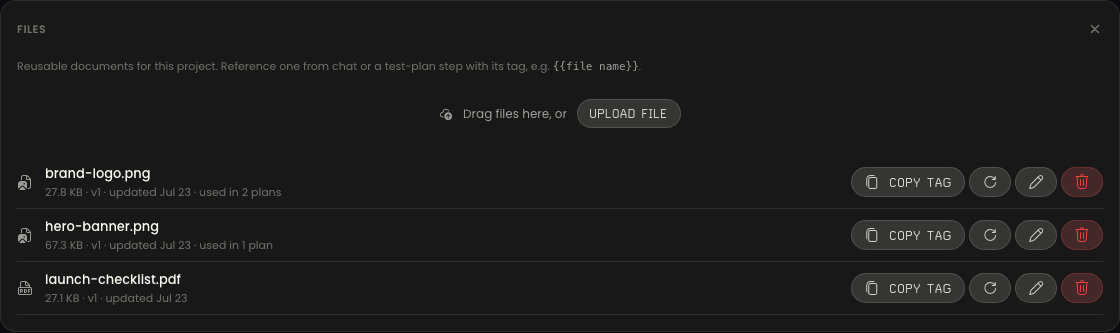
Manage files in Project Settings
Files live in a collapsible Files section in Project Settings. Upload by dragging files onto the drop zone ("Drag files here, or") or with the Upload file button — you can add several at once.
Each file shows its type glyph, name, and a metadata line —
{size} · v{version} · updated {date} · used in N plans (hover used in N
plans to see which plans reference it). Per-file actions:
| Action | What it does |
|---|---|
| Copy tag | Copies {{name}} to the clipboard (with a confirmation toast) so you can paste the tag into a chat or a step. |
| Replace | Swaps the file's bytes for a new upload and bumps its version. The name and tag stay the same. |
| Rename | Changes the file's name — and therefore its tag. |
| Delete | Removes the file and its stored bytes. |
Notes on uploads:
- 20 MB per file, any file type.
- Names are unique within a project (case-insensitive). Uploading a duplicate name never silently overwrites — it prompts "Upload as <suggested> instead?" with a suggested alternative you can accept or cancel.
- There are no previews or thumbnails — files are shown as type glyphs, not rendered content.
Reference a file with a tag
Anywhere you can type instructions — a chat message to the Assistant or the text of a test-plan step — write the file's tag inline:
Upload {{invoice-template.pdf}} on the new-invoice form and submit it.When the project has at least one file, typing {{ opens an autocomplete of
your project files; pick one and it inserts the full {{name}} tag. As you type,
a resolved tag renders as a neutral chip below the input; a tag that matches
no file renders as a red chip so you can catch the typo before you send or
run.
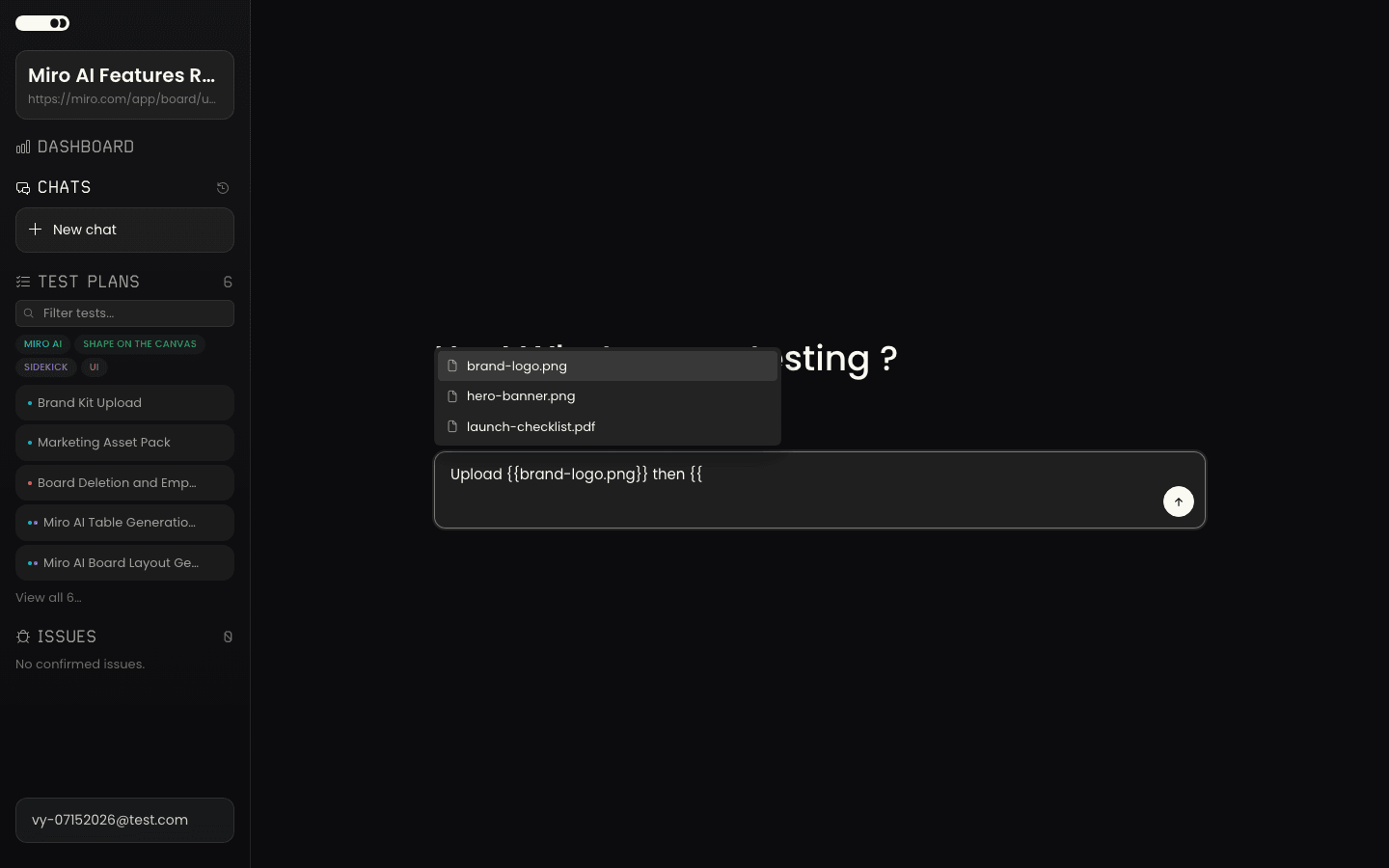
At send (chat) and at run start (plans), tags are re-resolved against the current library and the file is attached to the agent's context. In a chat, the agent then works with the file just like a manually attached one — it can, for example, upload the file into the app under test, or read its contents.
Unknown tags are blocked, not guessed
If a tag names a file that doesn't exist, Agentiqa blocks the action rather than letting the agent guess:
- Chat send is blocked with a toast: Unknown file
{{x}}— check Project Files. - Run start is blocked with an error naming the missing file.
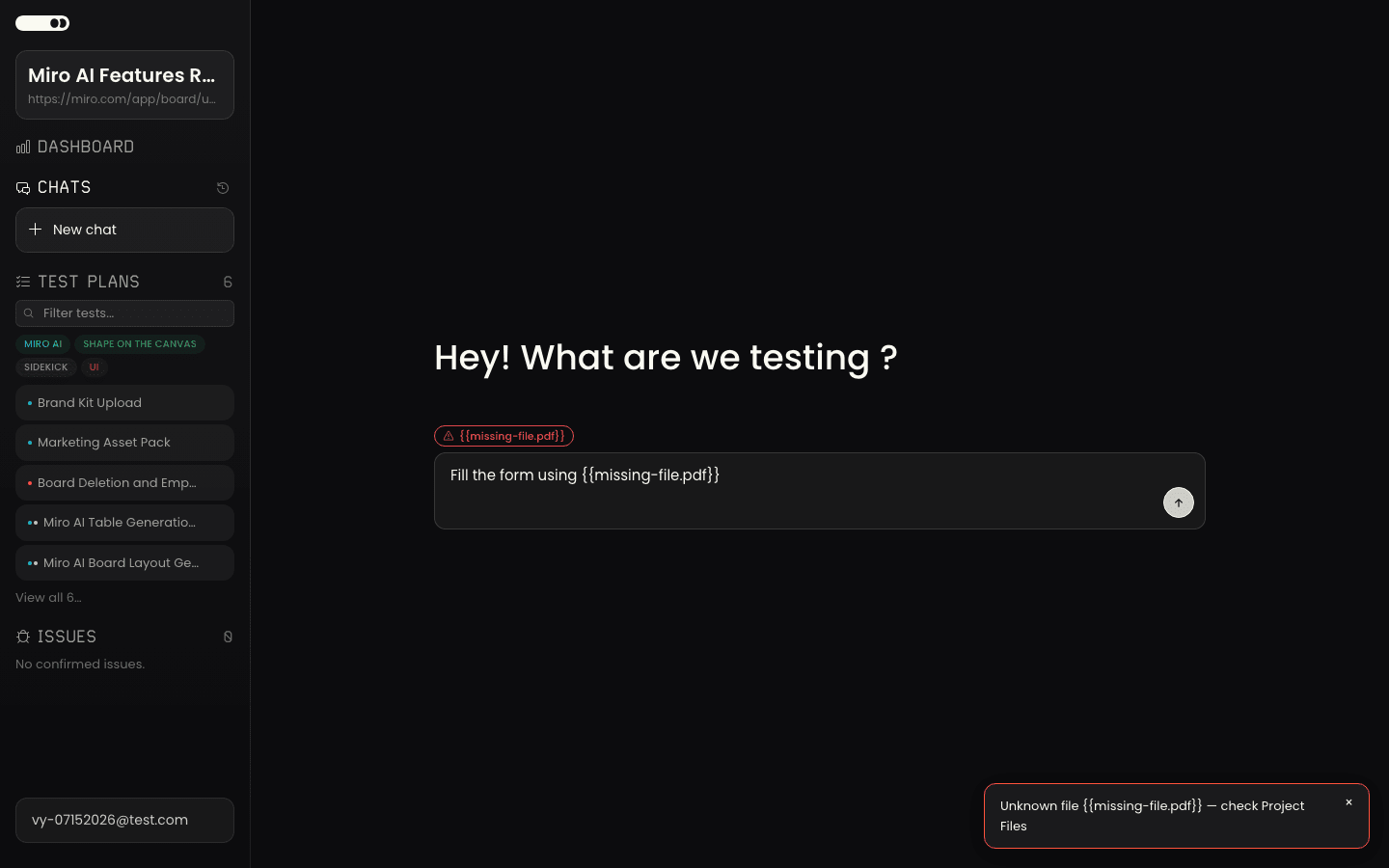
Empty library: tags are literal text
Tag syntax is only interpreted when the project has at least one file. In a
project with no files, {{anything}} is passed through as ordinary text and never
blocks — so a pre-existing step like Enter promo code {{PROMO2024}} keeps
working exactly as before.
Tags in saved plans and the CLI
Saving a test plan whose step text contains a valid tag stamps the resolved file onto that step, so the plan carries the file with it. Because saved plans carry their resolved files, running a saved plan works everywhere — in the app, and headless via the CLI or the GitHub Action.
Keep the
{{file name}}tag in the step text. On every save, Agentiqa keeps a step's Project File attachment only while the step text contains its matching{{file name}}tag. If you remove the tag (or write the file name without braces, such asUpload invoice-template.pdf), or if the file was renamed or deleted in Project Files, saving the plan detaches the stale file and returns aproject_file_asset_prunedwarning inlintWarningsnaming the step and file.
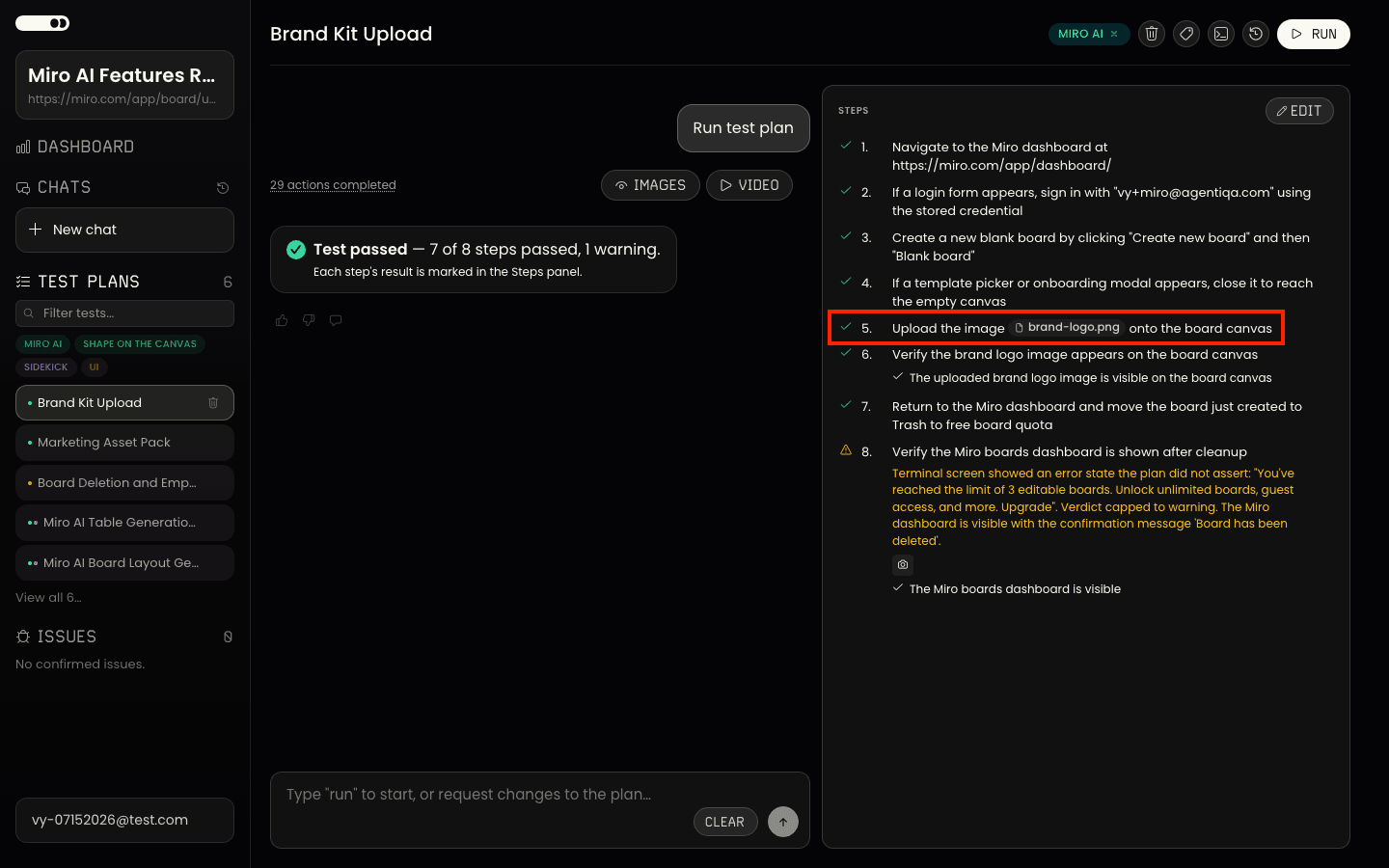
Runs started from the web app or desktop app re-resolve every step's
tags fresh at start, which makes Replace immediate there: replace a file's
bytes and the next app-launched run picks up the new version automatically.
CLI and GitHub Action runs execute the fileAssets stamped onto the
plan when it was saved — after replacing a file, re-save the plan if you want
CLI and Action runs to use the new version.
Run start also enforces a per-step limit of 10 files. If a step's resolved tags would exceed that, the run is blocked (the extra file is never silently dropped) with a message naming the step and file.
Ad-hoc CLI prompts don't resolve tags. A one-off
exploreinstruction typed at the CLI does not resolve{{tags}}— only saved plans carry files. Reference project files from plans you save in the app, then run those plans from the CLI.
Replace, rename, and delete
- Replace keeps the tag and name; only the bytes and version change. Every plan and chat that uses the tag gets the new file on its next run — nothing to re-save.
- Rename changes the tag. It does not rewrite tags already written into existing plans, so those tags would stop resolving; the app warns you which plans reference the file ("Renaming won't update those tags"). Update the tag text in those plans yourself, or copy the new tag from the Files section.
- Delete removes the file and its bytes. If any plans reference it, the app warns you first ("Those tags will stop resolving").
Related
- Assistant — reference a file in a chat message.
- Test Plans — reference a file in a plan step.
- Settings — where the Files section lives.
- CLI overview — running saved plans (with their files) headless.