Labels
Tag test plans with project-scoped labels, then run just that subset from the CLI or GitHub Action.
A label is a project-scoped tag — a name and a color — that you attach to test
plans. A plan can carry any number of labels, and labels can be shared across
plans, so a label names a subset of your suite: smoke, checkout,
nightly, billing. That subset is what you then run in automation — instead of
running every plan, run "the smoke plans" from the CLI or the GitHub Action.
Labels belong to a project (their ids look like lbl_…) and are stored in the
cloud alongside the rest of your project data, so the same labels are visible in
the web app, the desktop app, and to the CLI.
Create and assign labels in the app
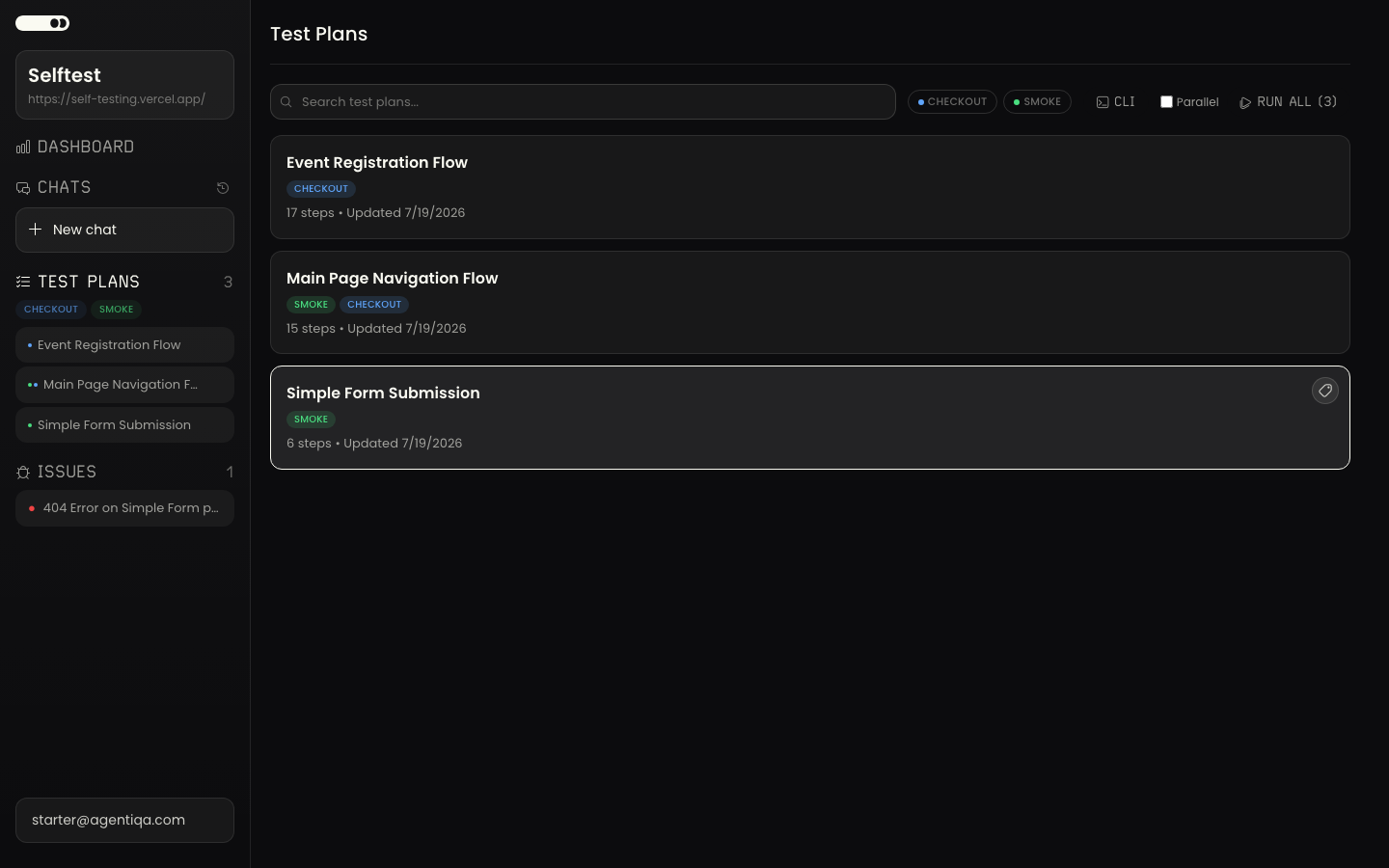
Labels are created and assigned in the product (the web or desktop app), on a test plan — or from the CLI, if you'd rather script it.
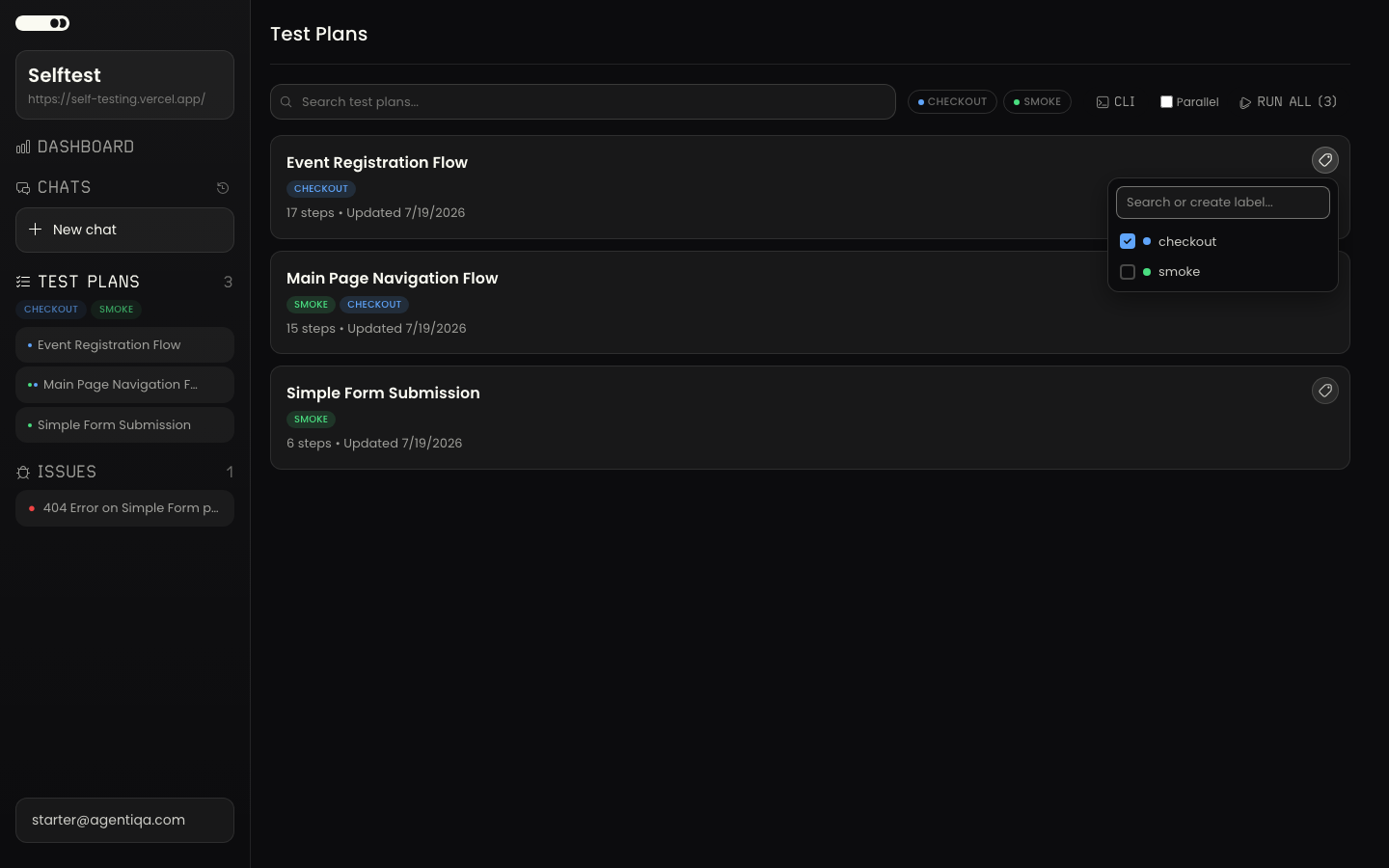
- Assign / create from a plan. Open a test plan (or use the label control on its card) and open the label picker. Type a name: pick an existing label, or choose Create "<name>" to make a new one. A color is auto-assigned from the palette (you can pick a different one). The label attaches to that plan immediately and syncs to the cloud.
- Manage the project's labels — rename, recolor, or delete — from Project Settings. Deleting a label removes it from every plan that carried it (the plans themselves are untouched).
Manage labels from the CLI
The same four operations are available to the CLI, scoped to the service key's project:
export AGENTIQA_SERVICE_KEY=sk_...

agentiqa labels list                       # ids + names
agentiqa labels create smoke               # mints lbl_…, auto-assigns a color
agentiqa labels create nightly --color '#60a5fa'
agentiqa labels update lbl_2b7f0e --name regression
agentiqa labels delete lbl_2b7f0e
create <name>prints the newlbl_…id. A color is auto-assigned from the palette unless you pass--color(6-digit hex). Names are unique per project, case-insensitive — a duplicate is a configuration error (exit 2).update <id>takes--name,--color, or both; the one you omit is left as-is.delete <id>deletes the label and detaches it from every plan that carried it, exactly like deleting it in the app — the plans themselves are untouched. The output reports how many plans were rewritten.- Add
--jsonto any of them for the machine-readable envelope (labels,label, ordeleted+detachedPlanIds).
Attaching a label to a plan is a plan edit, not a label command: put the
lbl_… ids in the plan's labels array and
agentiqa plan save it.
agentiqa plan get tplan_… --json \
  | jq '.plan.labels = ["lbl_2b7f0e"]' \
  | agentiqa plan save --file -
Select labeled plans in automation
agentiqa run (with a service key) operates on
the key's project. Two selectors narrow which plans execute:
| Selector | Runs |
|---|---|
| (none) | All non-deleted plans in the project. |
--plan-id tplan_… | One specific plan. |
--label-ids a,b,c | Every plan tagged with any of the listed labels (OR match). |
--label-ids takes label ids (the lbl_… values), comma-separated. If you
pass both, --plan-id wins over --label-ids. A selector that matches no
plans is a configuration error (a nonzero exit) — a run that tests nothing is
never a pass. See the CLI reference and
CI Integration.
The GitHub Action exposes the same two selectors as inputs:
plan-id and label-ids (again, plan-id overrides label-ids).
Copy the command without hunting for ids
You don't have to look up lbl_… ids by hand. In the app, open Run from CLI
for a project, tick the labels you want (and the Run in parallel toggle if you
want it), and copy the generated command. It already contains the right
--label-ids <ids> (and --mode parallel) plus the AGENTIQA_SERVICE_KEY
environment prefix — paste it straight into your shell or a CI step.
Run a labeled subset in CI
Combining a service key (auth) with a label selector (scope) is the core
CI pattern: give each pipeline the subset it should run. A common split is a fast
smoke label on pull requests and the full suite nightly.
CLI step — run only the plans tagged smoke:
AGENTIQA_SERVICE_KEY=sk_... npx -y agentiqa@latest run \
  --engine https://engine.agentiqa.com \
  --label-ids lbl_2b7f0e   # the id of your "smoke" label
GitHub Action — the same subset, run in parallel:
- uses: agentiqa/qa-action@v1
  with:
    service-key: ${{ secrets.AGENTIQA_SERVICE_KEY }}
    label-ids: lbl_2b7f0e
    mode: parallel
The service key is project-scoped, so the labels you reference must belong to that same project. For minting and storing keys, see CLI Service Keys; for sequential-vs-parallel behavior, see Parallel runs.
Related
- Test Plans — where plans (and their labels) come from.
- CLI overview — plan selection and parallel execution.
- GitHub Action — the
plan-id/label-ids/modeinputs.